WorthLens.ai on Mobile: Instant AI Appraisals from Your Phone
WorthLens.ai works fully on mobile — no app store, no download. Add it to your home screen in seconds and appraise items anywhere with your camera.
You spot something at a flea market and want to know what it's worth — before you hand over the cash. WorthLens.ai is built for exactly that moment. Open it on your phone, snap a photo, and get an AI appraisal in seconds.
No app store. No lengthy download. No account setup. If you already use WorthLens.ai on desktop, your phone is ready right now.
Table of Contents
- Is There a WorthLens App in Google Play or the App Store?
- How to Add WorthLens to Your Home Screen on Android
- How to Add WorthLens to Your Home Screen on iPhone
- What You Get on Mobile
- Taking Photos for Appraisal on Mobile
- Buying Credits on Mobile
- FAQ
Is There a WorthLens App in Google Play or the App Store?
WorthLens.ai is not listed in Google Play or the Apple App Store.
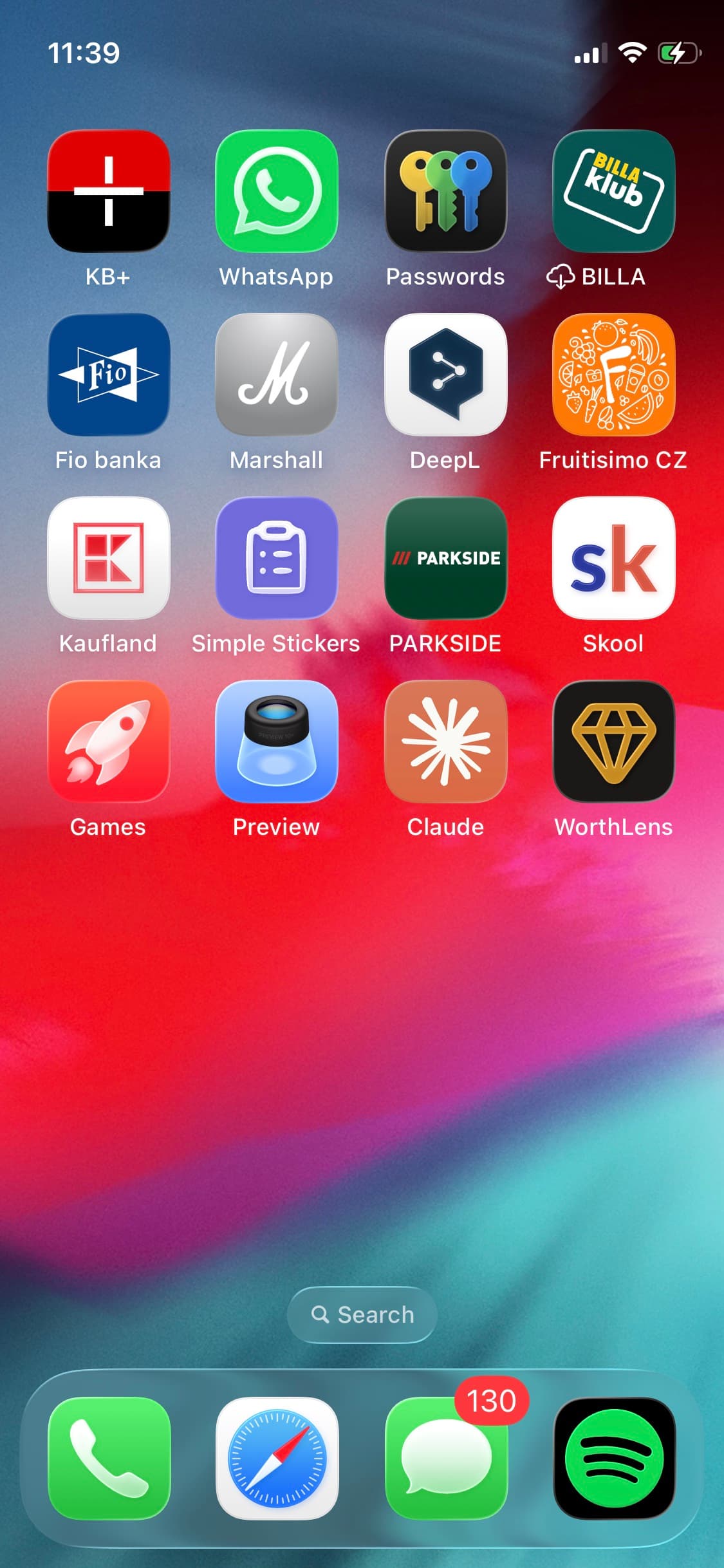
Instead, it installs directly from your browser — one tap, done. The icon lands on your home screen just like any other app, and tapping it opens the full WorthLens interface without showing any browser chrome.
There is a different app called "WorthLens" in both the App Store and Google Play. It is a separate product from an unrelated developer and has nothing to do with WorthLens.ai. Always install from worthlens.ai directly.
This approach has a few practical benefits for you as a user:
- No storage drain — nothing is downloaded to your phone; the app runs from the web
- Always current — you're always on the latest version, automatically
- Zero friction — the whole "installation" takes about a few seconds
How to Add WorthLens to Your Home Screen on Android
Using Google Chrome (recommended):
- Open Chrome and go to worthlens.ai
- Tap the three-dot menu (⋮) in the top-right corner
- Select "Add to Home screen"
- Confirm the name — it shows as "WorthLens" — and tap "Add"
- The WorthLens icon appears on your home screen just like any other app
On newer Android versions, Chrome may show an install prompt at the bottom of the screen automatically. Tap "Install" to confirm.
How to Add WorthLens to Your Home Screen on iPhone
Using Safari (recommended):
- Open Safari and navigate to worthlens.ai
- Tap the Share button — the box with an upward arrow at the bottom of the screen
- Scroll the share sheet and tap "Add to Home Screen"
- The name appears as "WorthLens" — tap "Add" in the top-right corner
- The WorthLens icon appears on your home screen just like any other app
On iPhone, use Safari for the smoothest experience. Chrome and Edge on iOS also support this from iOS 17 onwards, but Safari works on all versions.
What You Get on Mobile
Once the icon is on your home screen, tapping it opens WorthLens.ai in full-screen — no address bar, no browser tabs, no distractions. It looks and feels exactly like a native app.
Under the hood, it's the same website running in the background. That means:
- Same login — use your existing email/password or Google account, nothing to re-register
- Identical features — every tool available on desktop is available on mobile, no exceptions
- Synced history — appraisals done on your phone are immediately visible on desktop, and vice versa
- Same AI engine — there's no stripped-down mobile version; the analysis is identical
Taking Photos for Appraisal on Mobile
This is where mobile really shines. Instead of uploading a photo from your computer, you can appraise items live, in the moment.
When starting a new appraisal, you have three options:
Camera — tap to open your phone's camera directly and take a fresh photo on the spot. Perfect for markets, auctions, or estate sales.
Gallery — choose a photo you've already taken. Useful when you photographed something earlier and want to appraise it later at home.
Files — browse your phone's file storage. Handy for photos received in a message or downloaded from a listing.
Good lighting and a plain background make a real difference in appraisal accuracy. If you can, take the photo outdoors or near a window. Multiple angles — front, back, any maker's marks — give the AI more to work with.
Buying Credits on Mobile
You can purchase credits on both desktop and mobile. On mobile, you get one additional convenience: native payment methods.
- Android — Google Pay activates automatically if set up on your device
- iPhone — Apple Pay is available in Safari
Instead of typing in card details, you confirm the purchase with a fingerprint or Face ID. Card payment remains available as an alternative on both platforms.
Credit balance is shared across your account — credits bought on mobile are instantly available on desktop, and the other way around.
FAQ
Your phone is all you need. Add WorthLens.ai to your home screen and appraise anything, anywhere — at the market, at an auction, or in your attic.